Quick Action Menu on PWA - Product Craft
Discover a small detail you can add to your Progressive Web App to give users quick access to actions right from your app’s icon.
Home Screen Quick Actions
Many people don’t know about this, but both iOS and Android offer a useful feature that lets users access specific parts of an app directly from its icon. Simply touch and hold an app icon, and the operating system will display a menu of Quick Actions that can take you directly to specific features or actions within the app.
Home Screen Quick Actions were introduced on iOS 9 in 2015 alongside 3D Touch, while Android introduced its App Shortcuts API with Android 7.1 in 2016. Today, both platforms allow users to access these actions by touching and holding an app icon.
In my opinion, paying attention to the small details is what makes a digital product truly great. That’s why I always appreciate seeing developers who think about the entire user experience, rather than simply making a feature work.
Quick Actions are a great example of this. They can make an app more productive and significantly easier to use by giving users a faster way to access the actions they use most.
On platforms such as iPadOS, where more and more people are using a mouse or trackpad, these interactions can become even more interesting. For example, right-clicking an app icon can also expose the available Quick Actions.
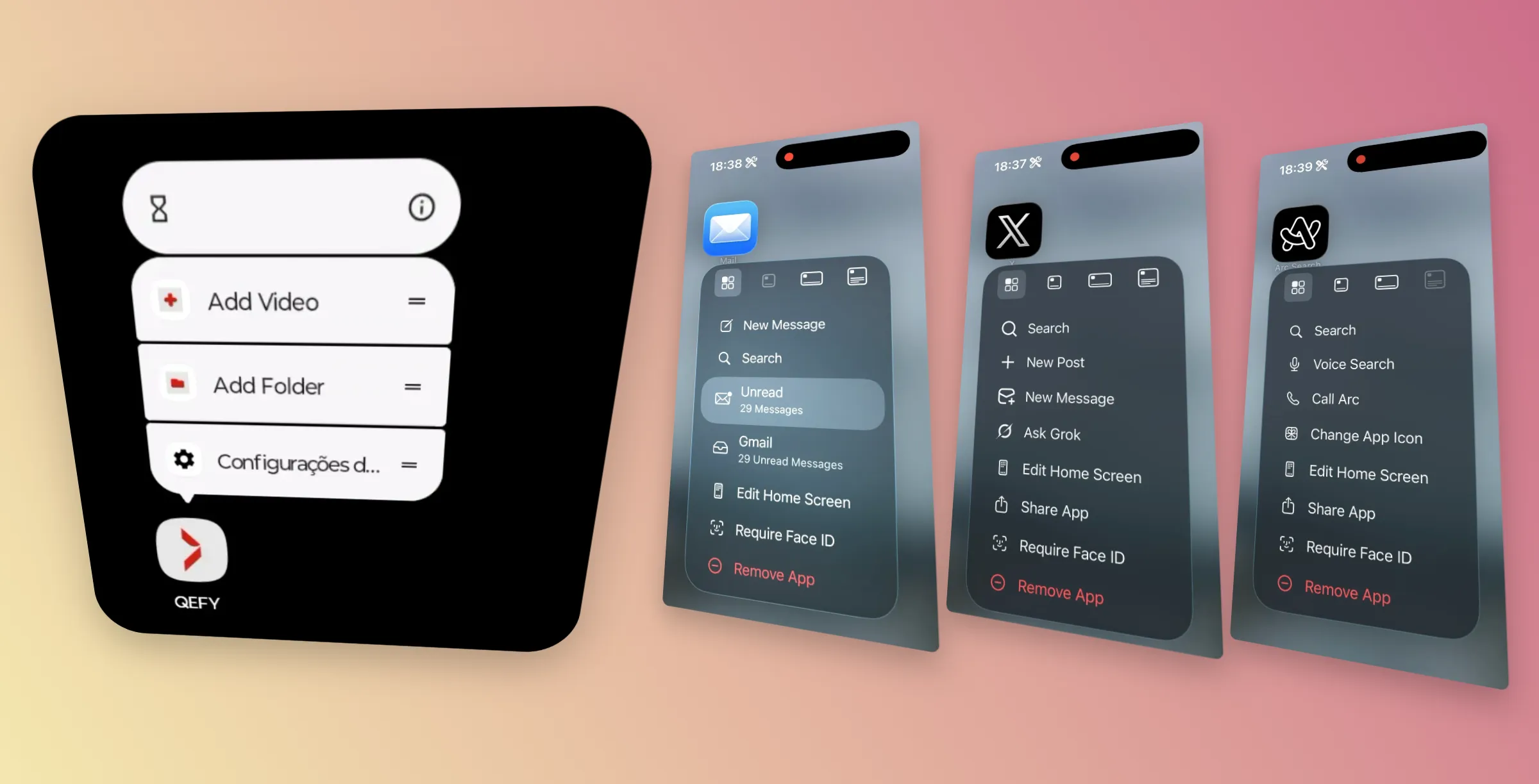
Here are a few examples in action on iOS:




This is a great example of a small detail that can have a meaningful impact on the user experience. If you haven’t implemented Quick Actions in your native apps yet, I highly recommend taking a look at the official Android documentation and Apple documentation.
This post isn’t about native implementation, though, so let’s get to what really matters: implementing this same idea in a Progressive Web App.
Quick Actions in a PWA
If Quick Actions are a feature that relatively few developers use in native apps, even fewer people realize that you can bring a similar experience to a Progressive Web App.

As of August 2026, the shortcuts member of the Web App Manifest can be used to define shortcuts for installed PWAs. On Android, Chrome can expose these shortcuts when users interact with the PWA’s icon. Support for the shortcuts manifest member varies across browsers and platforms.
While exploring the options available in a web app’s manifest file, I discovered that you can define these shortcuts directly in the manifest. At runtime, the browser can then expose them as actions associated with your installed PWA.

As you can see above, I implemented two shortcuts for one of my web apps. The first lets users add a video, while the second lets them create a new folder.
Implementation
The implementation is surprisingly simple.
At the root of your web project, you need a manifest.json file. The Web App Manifest describes your web application and is also where you define the shortcuts you want to expose to users.
{
  "name": "QEFY",
  "short_name": "QEFY",
  "id": "/",
  "start_url": "/",
  "scope": "/",
  "display": "standalone",
  "display_override": ["standalone", "minimal-ui", "browser"],
  "shortcuts": [
    {
      "name": "Add Video",
      "short_name": "Add",
      "description": "Add a new video to your queue",
      "url": "/queue?action=add",
      "icons": [
        {
          "src": "icons/shortcut-add-96x96.png",
          "sizes": "96x96",
          "type": "image/png"
        }
      ]
    },
    {
      "name": "Add Folder",
      "short_name": "Folder",
      "description": "Create a new folder",
      "url": "/queue?action=folder",
      "icons": [
        {
          "src": "icons/shortcut-folder-96x96.png",
          "sizes": "96x96",
          "type": "image/png"
        }
      ]
    }
  ]
}
The important part here is the shortcuts property. Each shortcut can define a name, a short_name, a description, a url, and optionally an icon. The url is the destination that the browser will navigate to when the user activates the shortcut, and it must be within the PWA’s scope.
And that’s it. Once your manifest is configured and your PWA is installed, the browser and operating system can expose these shortcuts through the app icon.
As you can see in the example above, I added an action query parameter to each shortcut URL. In my app, both actions open a specific popup: one for adding a video and another for creating a folder.
For example:
{
  "url": "/queue?action=add"
}
From this point on, what happens with that URL is entirely up to your application.
The browser is responsible for opening the URL associated with the selected shortcut. Your application is then responsible for interpreting that URL and deciding what to do.
In my case, when the app receives the action=add parameter, it opens the video creation popup:

There is another nice detail on Android: users can also create Home Screen shortcuts directly from these PWA shortcuts.